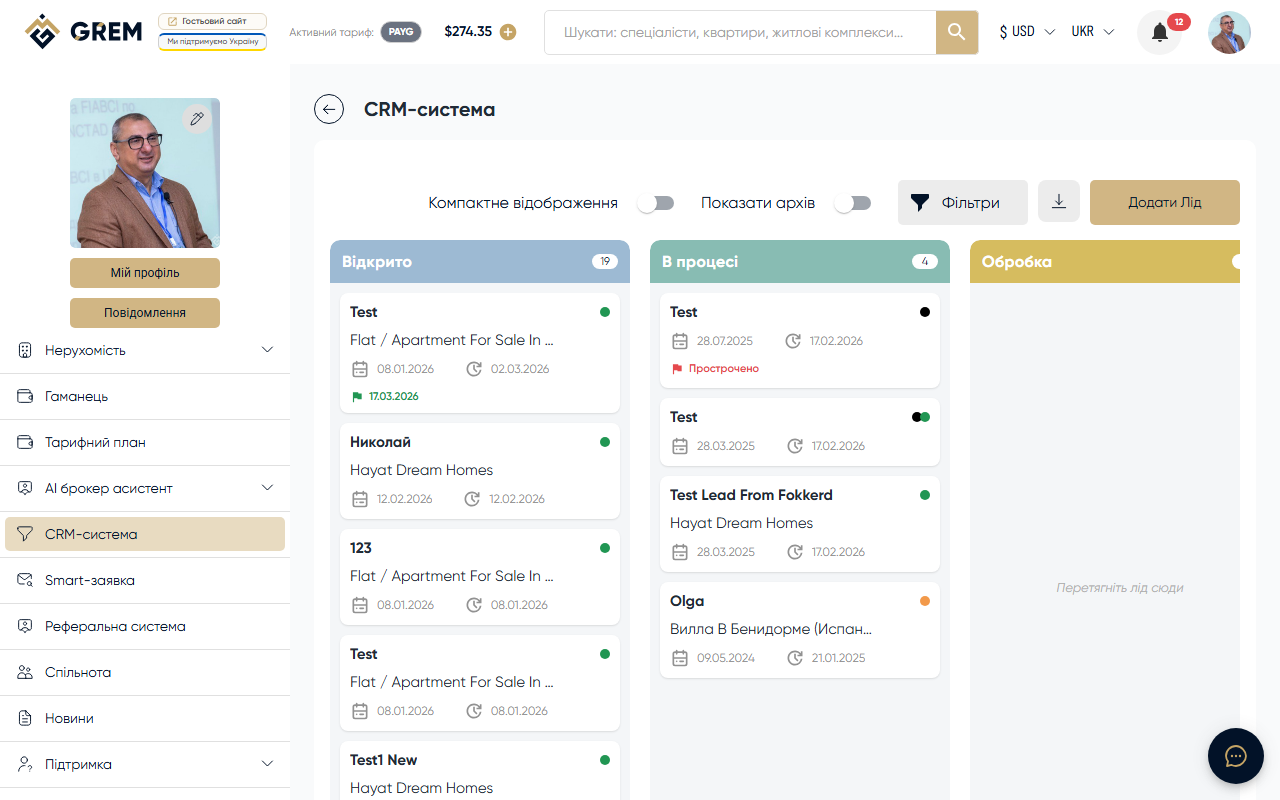
Creating a Lead
Leads are created through a submission form. Click the "Create Lead" button on the board or in the lead list.
Creation Form Fields
| Field | Required | Description |
|---|---|---|
| Client name | Yes | Full name of the potential client |
| Phone | Yes | Contact phone number |
| No | Client email address | |
| Budget | Yes | Client's purchase budget |
| Country | No | Client's country |
| Messenger | No | Telegram, WhatsApp, or Viber |
| Broker comment | No | Internal notes about the lead |
| Property | No | Link to a real estate property |
| Recipient | No | Recipient broker (for "Transfer" type leads) |
Lead Types
Own
A lead created by the broker for personal tracking. Not linked to a specific property. Used for maintaining a personal client database.
Contract
A lead linked to a specific property. When creating, select a property from the list. Commission is calculated automatically based on the contract percentage.
Transfer
A lead transferred to another broker. When creating, specify the recipient. The recipient sees the lead in their CRM marked as "received."
Leads from Landing Pages
When a potential client fills out a form on a property landing page, the system automatically creates a contract lead. The lead appears in the "New" column with the source "Landing" and is linked to the corresponding property.
Leads from landing pages contain the data the client entered in the form: name, phone, email. This data is automatically populated in the lead card.
Editing a Lead
Open a lead card by clicking on it. In the modal window, you can:
- Update the client's contact details
- Change the budget and comment
- Link or change the property
- Set a deadline: Deadlines and Reminders
- Send a message: Lead Chat
Visual Indicators
On the board, leads have colored markers:
- Black dot — own lead
- Orange dot — sent lead (transfer)
- Green dot — received lead from another broker
Learn more about the pipeline: Sales Pipeline