Before You Start
To register, you'll need an email and a password. The entire process takes less than a minute. After registration, you'll automatically receive a free 14-day plan.
One email = one account. If you've already registered, use the sign-in page or password recovery.
Where to Register
Registration is available on the dashboard website:
- Web: go to cabinet.grem.capital
- Mobile app: download from Google Play, open it, and tap "Register"
The "Register" button on grem.capital will redirect you to the dashboard.
Registration Steps
Open the registration form
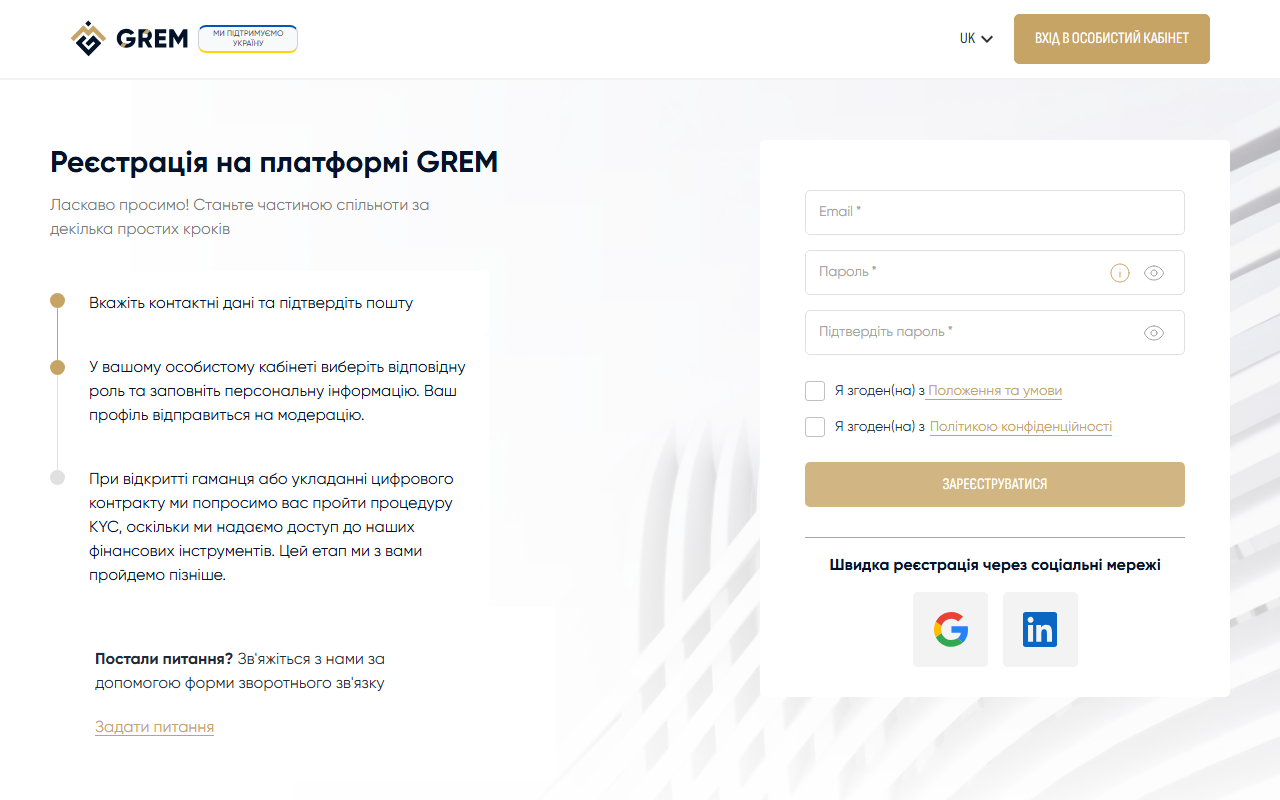
Go to cabinet.grem.capital/auth/register. Or click the "Register" button on grem.capital.
Fill in the form
The form includes the following fields:
- Email — your email address (will be used for signing in)
- Password — minimum 8 characters
- Repeat password — enter the password again to confirm
- Terms of Service — check the box (link to terms of service)
- Privacy Policy — check the box (link to privacy policy)
Complete the reCAPTCHA check
By default, invisible reCAPTCHA v3 is used. If the system suspects a bot, a standard reCAPTCHA v2 with an "I'm not a robot" checkbox will appear.
Confirm your email
After registration, you'll receive an email with a confirmation link. Click the link to activate your account.
Alternative Registration Methods
The dashboard also supports registration via:
- Google — sign in with your Google account
- LinkedIn — sign in with LinkedIn
When registering through a social network, your email and name are filled in automatically.
Password Requirements
| Requirement | Value |
|---|---|
| Minimum length | 8 characters |
There are no other password requirements — no mandatory uppercase letters, digits, or special characters. However, we recommend using a strong password with a mix of character types.
Password Recovery
If you forgot your password, you can reset it:
Go to the sign-in page
Click 'Forgot password?'
Below the sign-in form, there's a link for password recovery.
Enter your email
Enter the email address you used during registration.
Check your email
You'll receive an email with a password reset link. Click the link to go to the password reset page.
Set a new password
Follow the link from the email and enter a new password. Minimum length: 8 characters.
If you're already signed in and want to change your password, you can do so in your profile settings without the reset procedure.
Registering as a Broker
The platform has a separate registration flow for brokers. It creates an account with the "broker" role right away, granting access to advanced real estate tools.
Broker registration is activated in one of the following ways:
- Following a special broker registration link
- Automatic detection when navigating from the platform's broker landing pages
The registration form and its fields remain the same as for standard registration. The only difference is that the created account immediately receives the broker role.
Referral Code
If you were invited by another user, the referral code is passed automatically through the link. Simply follow the link from the person who invited you, and the code will be applied during registration.
A referral code is 6 characters (letters and digits). If you received a code separately, make sure you followed the referral link.
What Happens After Registration
- An account is created with a free 14-day plan
- A confirmation email is sent
- You're automatically signed in to the dashboard
- The profile page opens, where you need to fill in your basic details
Until your email is confirmed, some features may be restricted. Check your inbox and "Spam" folder.
Troubleshooting
Confirmation email not arriving
- Check your "Spam" or "Promotions" folder
- Make sure you entered the email correctly
- Request the email to be resent
"Account already exists" error
An account with this email already exists. Try signing in on the sign-in page or use password recovery.
reCAPTCHA not passing
If you see a verification error message:
- Try refreshing the page
- Disable your VPN or proxy
- Try a different browser
"Password too short" error
The password must be at least 8 characters.
What's Next
After registration, proceed to profile setup — add your name, last name, country, and photo for full platform access.