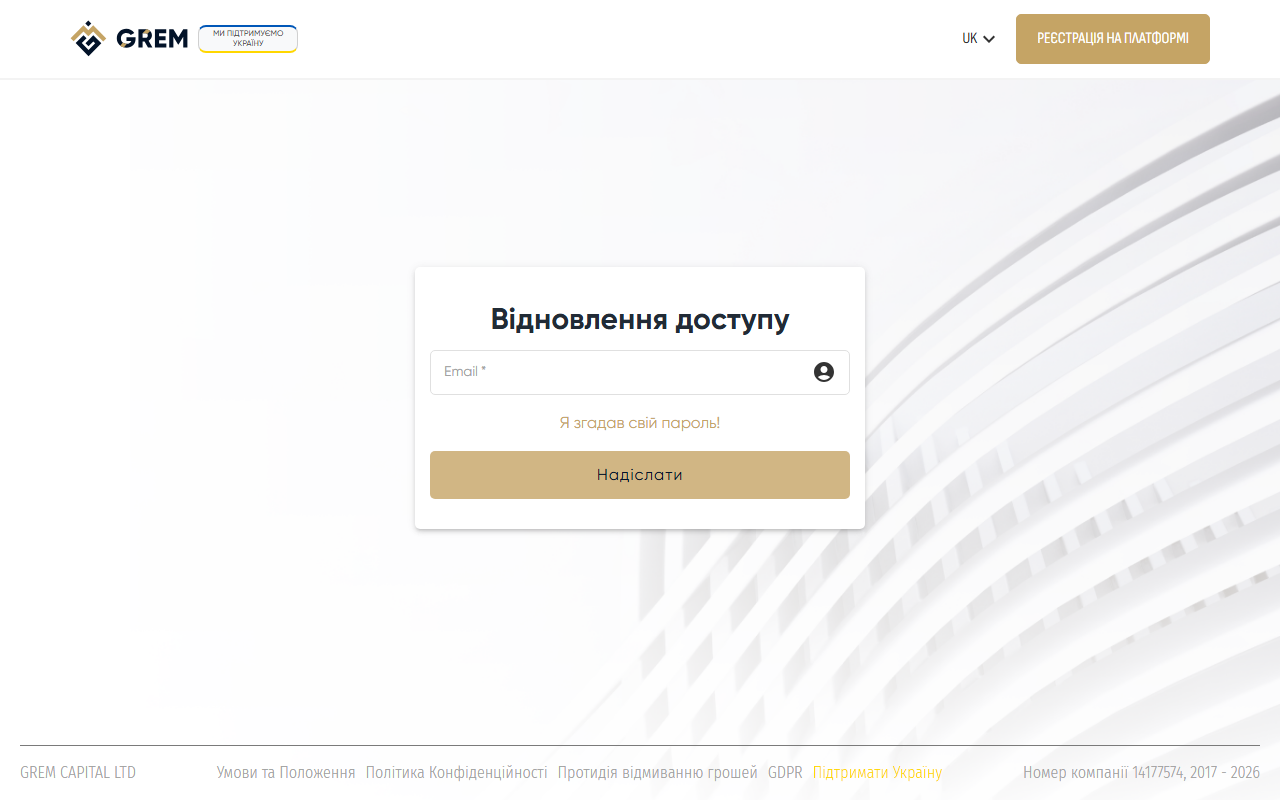
Forgot Your Password
If you forgot your GREM Capital account password, you can reset it via email. You'll need access to the email address you used during registration.
How to Reset Your Password
- Go to the dashboard sign-in page
- Click the "Forgot password?" link below the sign-in form
- Enter your account email
- Click the send button
- Check your inbox — you'll receive an email with a reset link
- Click the link in the email
- Enter a new password
- Sign in to the dashboard with your new password
If the email doesn't arrive, check your "Spam" folder. Make sure you're entering the same email address you used during registration.
Changing Your Password in the Dashboard
If you're already signed in and want to change your current password:
- Go to Settings in the dashboard
- Find the password change section
- Enter your current password
- Enter a new password
- Confirm the change
After changing your password, you'll receive an email notification confirming that the password was successfully changed.
Important
- The password reset link is single-use — once used, it becomes invalid
- If you request a reset again, the previous link will stop working
- If you don't have access to your account email, contact support
Never share your password reset link with anyone. If you receive a password reset email that you didn't request, ignore it and change your password through the dashboard.