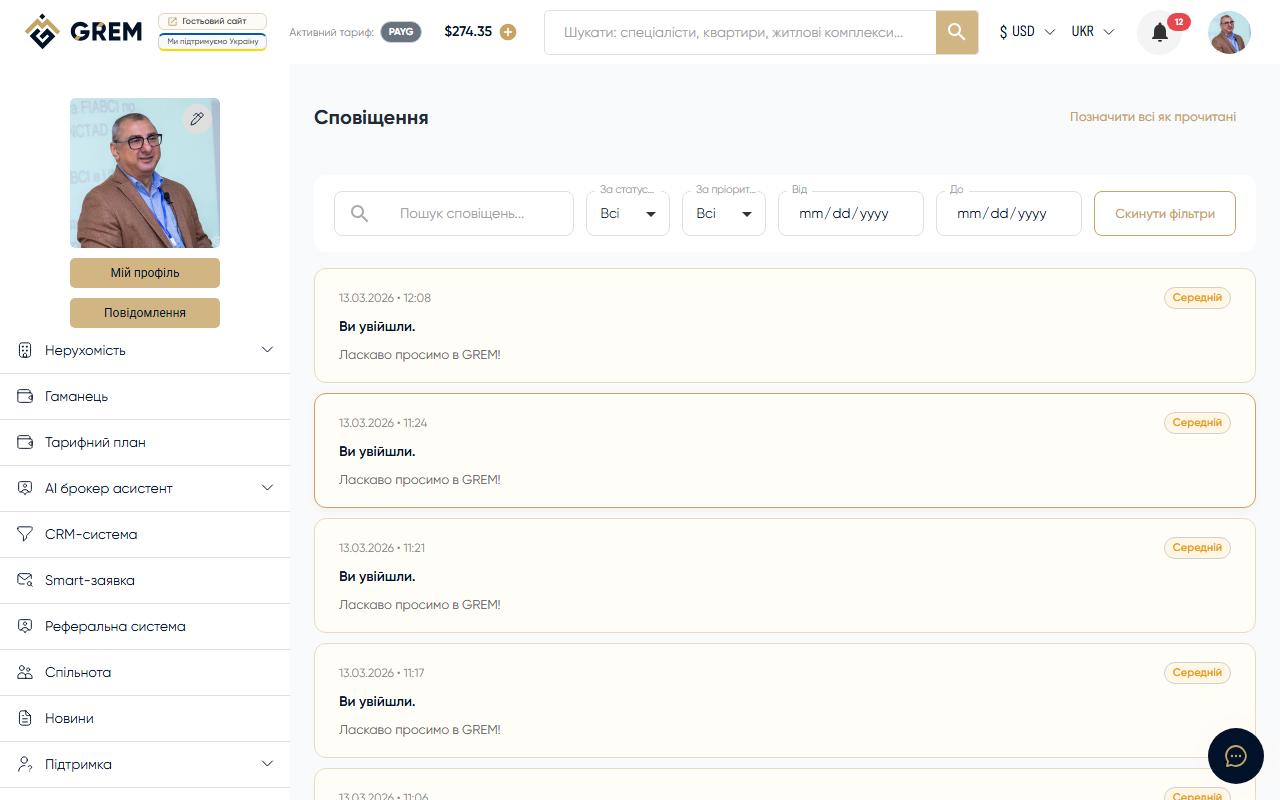
Notification System
The GREM Capital platform uses a multi-channel notification system to inform you about important events: new messages, status changes, request responses, credits, and more.
Delivery Channels
| Channel | Description |
|---|---|
| Emails to your inbox | |
| Push | Push notifications in the browser and mobile app |
| In-app | Notifications in the platform interface (bell icon) |
Each notification can be delivered through one or multiple channels simultaneously.
Priority Levels
| Priority | Description | Example |
|---|---|---|
| High | Critical events requiring attention | Payment issue, account block |
| Medium | Important updates | New message, status change |
| Low | Informational notifications | Marketing updates |
Notification Groups
Notifications are organized into categories by event type:
- Messenger messages
- Property status changes
- Support ticket responses
- Referral credits
- System messages
Viewing Notifications
The notifications page contains a list of all your messages. Each notification shows the title, short description, received time, and priority level.
Unread Counter
The top panel of the cabinet displays a counter with the number of unread notifications. It updates in real time and only counts enabled notification categories.
Filtering
Use filters to find specific notifications:
| Filter | Description |
|---|---|
| By priority | High, Medium, Low |
| By text | Search by title and description |
| By date | Date range |
Color Coding
Notifications have color marks corresponding to their priority:
- High: red mark — requires immediate attention
- Medium: yellow mark — important information
- Low: gray mark — informational message
Notification Actions
- Click on a notification to view details. The notification is automatically marked as read
- You can manually mark a notification as read or unread
Notification Settings
You can configure which channels to use for each event type.
Per-Event Configuration
For each event type, you can separately enable or disable each channel. For example:
- New messages: email + push + in-app
- Marketing updates: in-app only
- Property status changes: email + in-app
Muting a Specific Chat
If a messenger chat is too active, you can mute notifications for that specific chat. This does not affect other notifications.
More about the messenger: Messenger Overview.
Configuration Recommendations
- Enable push notifications for critical events (payments, security)
- Disable email for frequent events (chat messages) to keep your inbox clean
- Use mute for active group chats
To avoid missing important events, enable push notifications in your browser or mobile app. Settings changes take effect immediately.