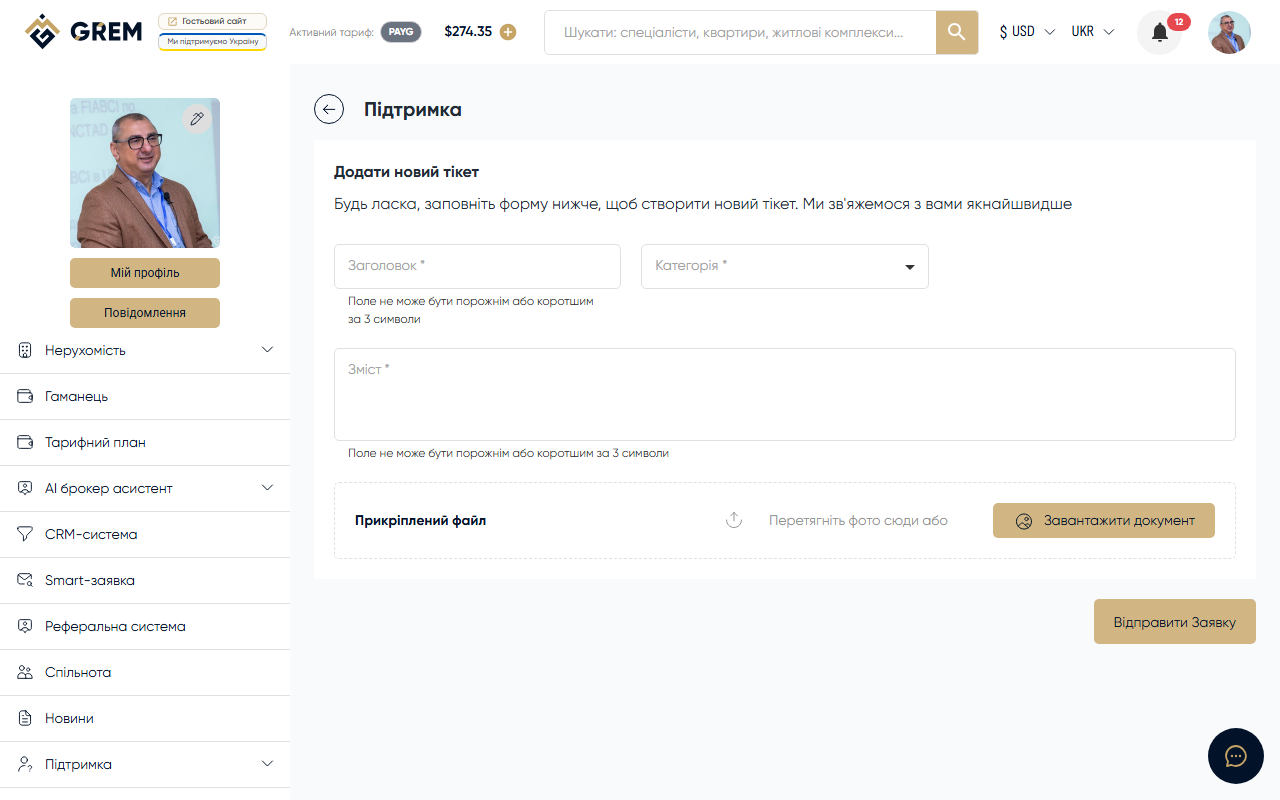
Creating a Support Ticket
Go to the "Support" section in your cabinet and click the button to create a new request.
Filling Out the Form
Required Fields
| Field | Description |
|---|---|
| Title | Briefly describe the issue |
| Category | Choose a category: Financial, Technical, or General |
| Description | Detailed description of the situation, steps to reproduce |
File Attachments
You can attach files to the ticket:
- Error screenshots
- Documents
- Other files that help clarify the situation
Tips for an Effective Request
- Use a specific title instead of "Problem" or "Help"
- Describe what you did, what you expected, and what happened
- Add screenshots if the issue is visual
- Specify your browser and device if the issue is related to display
After Creation
The ticket receives an "Open" status and enters the support queue. You will receive a notification when a specialist picks it up.
Communicating in a Ticket
A message thread is available on the ticket details page. You can:
- Read specialist responses
- Add new messages
- Attach files to messages
Each specialist response generates a notification to your email and in the cabinet.
Closing a Ticket
After the issue is resolved, the specialist changes the status to "Resolved." If the question remains, you can continue the conversation, and the ticket will be reopened.
Average first response time depends on the support team's workload. Urgent issues are handled with priority.