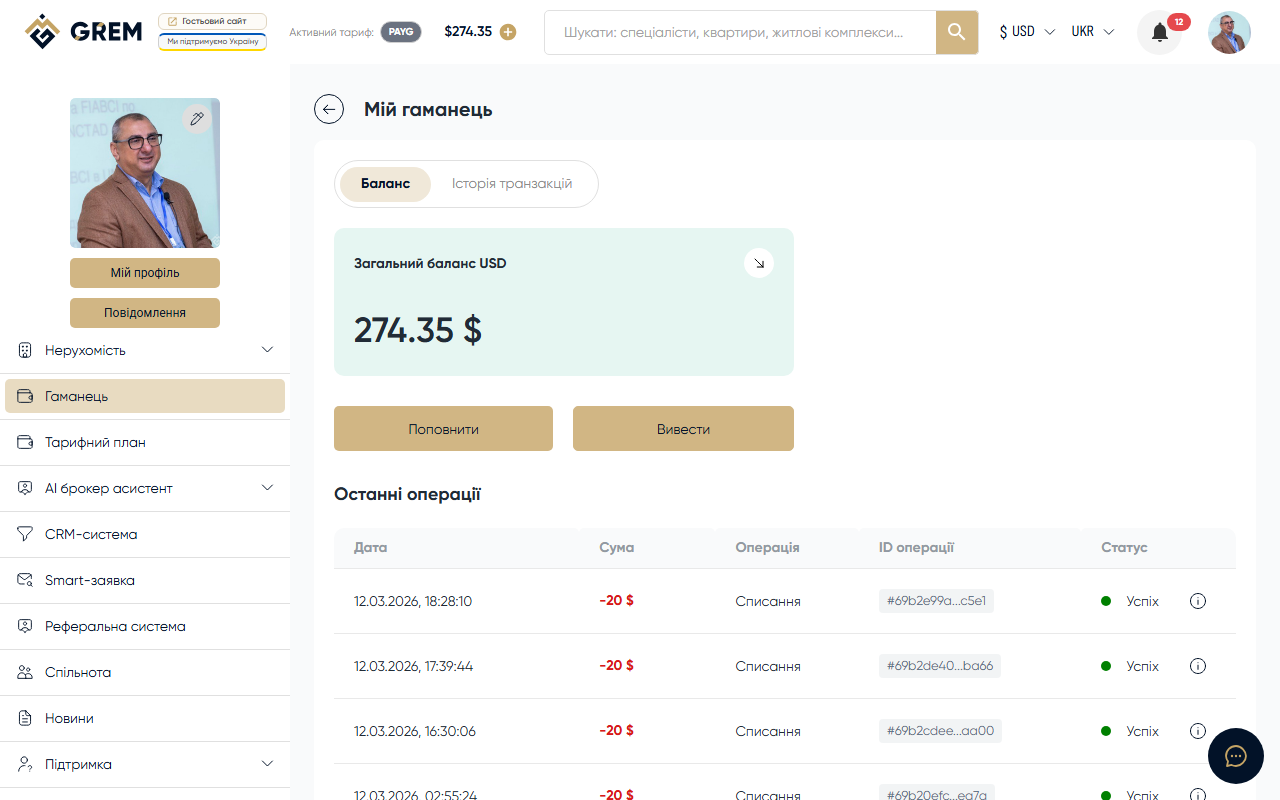
How to Top Up Your Balance
Topping up your balance is done through the payment system. The process takes a few minutes.
Step-by-Step Guide
- Open the Wallet section in your dashboard
- Click the "Top Up" button
- Enter the top-up amount in the dialog
- Enter your bank card details
- Confirm the payment
- Funds are credited to your wallet balance
Payment Methods
Top-ups are available via bank cards (Visa, Mastercard).
Top-Up Statuses
Each top-up goes through a sequence of statuses:
| Status | Description |
|---|---|
| New | Top-up request created |
| Pending | Payment awaiting confirmation |
| Processing | Payment is being processed by the payment system |
| Success | Payment completed, funds credited to balance |
| Failed | Payment failed (card error or decline) |
| Declined | Payment declined by the payment system |
Typically, a top-up completes within a few seconds after payment confirmation. In rare cases, processing may take up to a few minutes.
What to Do If Payment Fails
If an error occurs during payment:
- Check that your card has sufficient funds
- Make sure your card supports online payments
- Try a different card
- Contact support if the problem persists
A failed top-up does not charge your card. You can try again at any time.
Where to View Top-Up History
All top-ups are displayed in the transaction history with the "Incoming" type.
Minimum and maximum top-up amounts are defined by the system. If you see an error when entering an amount, check the allowed range.
Automatic Charges
If you have an active subscription, the plan cost is automatically charged from your wallet balance upon renewal. Make sure your balance is sufficient before the subscription renewal date.
You can check the renewal date on the plans and pricing page.