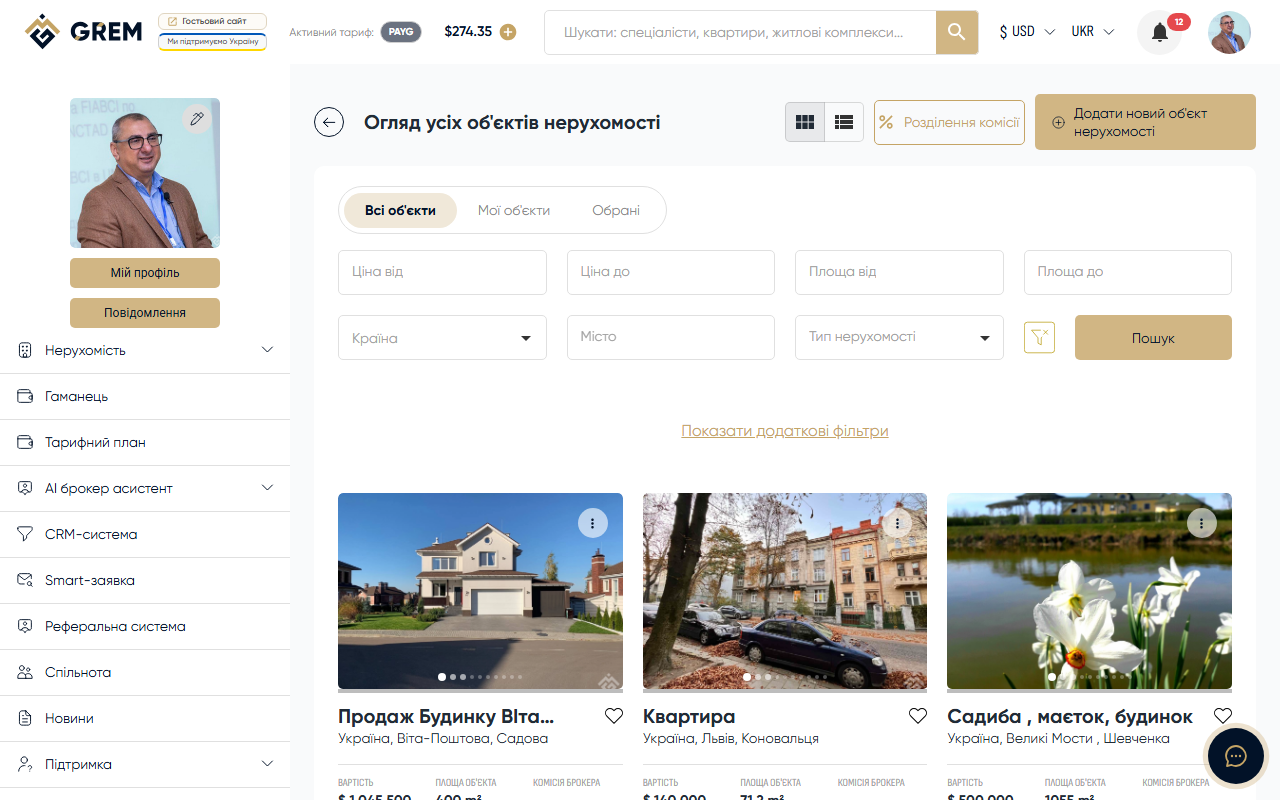
Property Catalog
The property catalog is the main interface for browsing and searching properties. It's available in the dashboard under "Properties" and on the public catalog.
Catalog Tabs
The catalog has three tabs:
| Tab | Description |
|---|---|
| All properties | All active properties on the platform |
| My properties | Properties created by the current user (all statuses) |
| Favorites | Properties added to favorites (bookmarks) |
The "My properties" tab shows properties with any status: drafts, in moderation, active, sold, inactive. The "All properties" and "Favorites" tabs show only active properties.
Full-Text Search
Search by property title works through a specialized search engine.
Search features:
- Fuzzy search — tolerates up to 2 typos
- Maximum results — up to 250 properties per query
- Speed — results appear almost instantly
- Search is performed on the property title
Search automatically corrects typos. Even if you type "aparment" instead of "apartment," the search will find the right results.
Filters
Use the filter set for precise searches. All filters can be combined.
Basic Filters
| Filter | Type | Description |
|---|---|---|
| Title | Text | Fuzzy search by property title |
| Country | Select from list | Filter by country |
| City | Text | Filter by city |
| Property type | Select | Residential, Commercial, Industrial, Land plot |
| Subtype | Select | Depends on the selected type |
Numeric Filters (Ranges)
| Filter | From | To | Note |
|---|---|---|---|
| Price | Minimum | Maximum | In the selected currency |
| Area | Min sq.m | Max sq.m | Total area |
| Floor | Min floor | Max floor | — |
| Room count | 1 | 6+ | "6+" means 6 or more |
| Year built | From year | To year | — |
The room count filter supports the "6+" value. If you select "6+," the search will return properties with 6 or more rooms.
Displaying Results
View Modes
Search results can be viewed in two modes:
- Grid — property cards arranged in a grid. Each card includes the main photo, title, price, and key specifications
- List — properties displayed in rows with extended information
Toggle between modes using the button at the top of the catalog.
Pagination
Results are split into pages of 12 properties each. Page navigation is available at the bottom of the page.
Sorting
By default, properties are sorted by creation date (newest first).
Favorites
Any property can be added to favorites by clicking the bookmark icon on the property card. Saved properties are available in the "Favorites" tab of the catalog.
Favorites are tied to your account and synced between the dashboard and the mobile app.
Public Catalog
The public catalog at grem.capital/catalog is accessible without signing in. It displays only active properties and has the same set of filters. Signing in is required to add a property to favorites or view documents.