Viewing Active Sessions
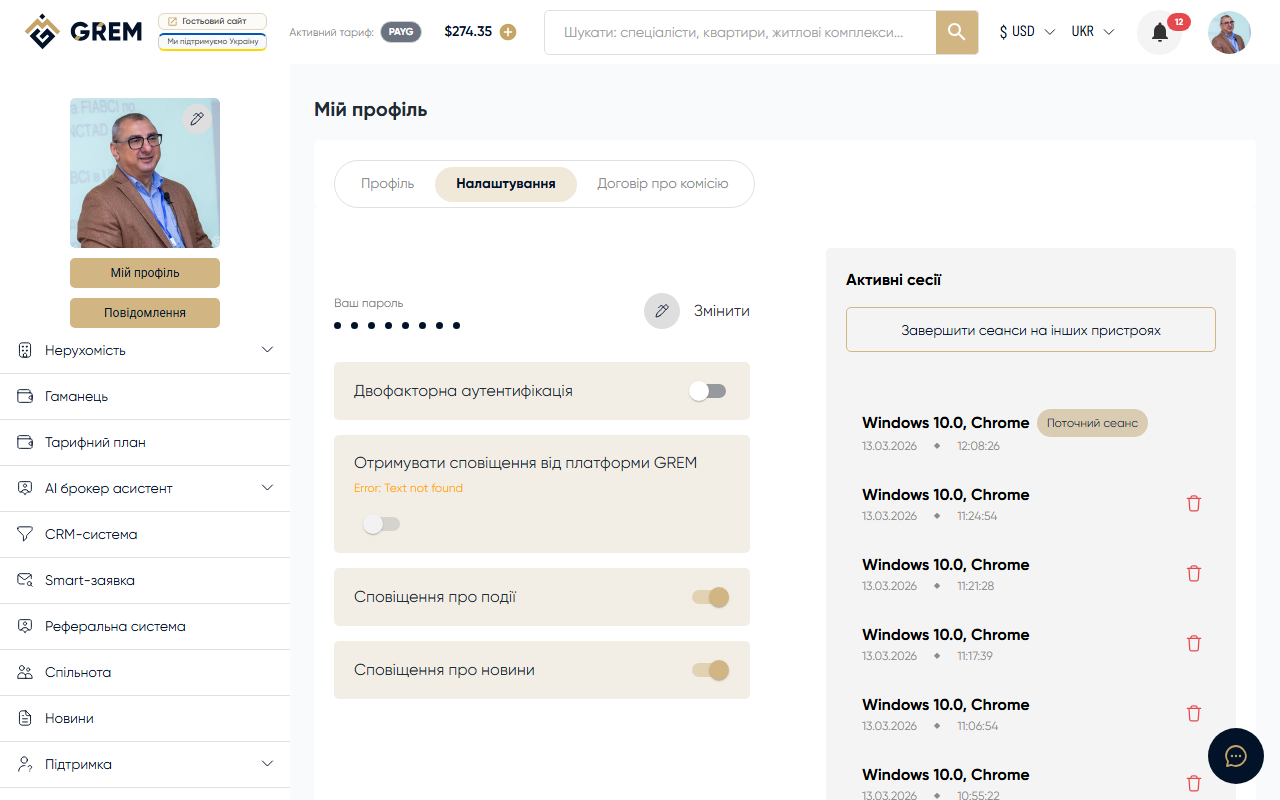
The active sessions section in your profile settings shows all devices and browsers where you are currently logged into your GREM Capital account.
Session Information
For each active session, the following is displayed:
| Parameter | Description |
|---|---|
| Device | Device type (computer, phone, tablet) |
| Browser / app | Browser or mobile app name and version |
| Location | Approximate location based on IP address |
| Last activity | Time of the last action in this session |
Terminating Sessions
If you see a suspicious session or want to log out from another device:
- Find the session in the list
- Click the terminate (logout) button
- The session will be closed immediately
You can also terminate all sessions except the current one. This is useful if you suspect unauthorized access.
When to Check Sessions
We recommend checking active sessions in these cases:
- You logged in from someone else's or a public computer
- You received a login notification you didn't initiate
- You suspect someone gained access to your account
- You changed your password and want to close old sessions
Session Security
Each session is tied to a unique authorization key. After terminating a session, the key becomes invalid, and login credentials are required to sign in again.
Always log out of your account on others' or public devices. If you forgot, terminate the session remotely through this section.