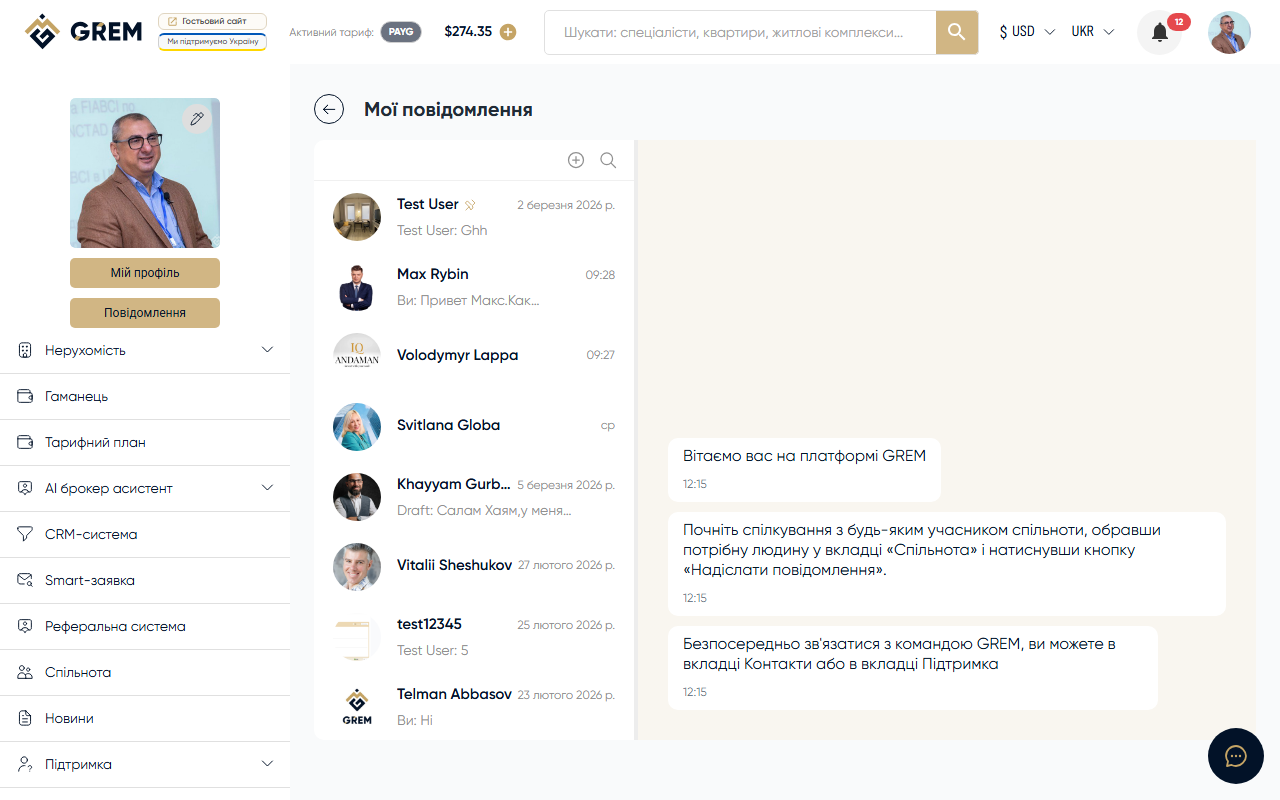
Creating a Group Chat
A group chat is created through the group creation dialog in three steps:
- Search contacts — find and select participants via search
- Group name — enter a name for the chat
- Avatar — upload an image for the group (optional)
After creation, all selected participants receive a notification and see the chat in their list.
Participants can be added and removed after creation.
Participant Roles
| Role | Permissions |
|---|---|
| Owner | Full control: delete the group, transfer ownership, all admin permissions |
| Admin | Add/remove participants, change group name, avatar, and description |
| Member | Send messages, view group information |
The owner is the user who created the group chat. They can assign administrators from among the participants.
Managing Participants
Adding
Administrators and the owner can add new participants:
- Open the group info panel
- Click "Add Participant"
- Find a contact via search
- Confirm the addition
Removing
Administrators and the owner can remove a participant from the group. A removed participant no longer sees the chat in their list and does not receive new messages.
Leaving the Group
Any participant can leave the group on their own. A system message appears when someone leaves.
System Messages
The system automatically creates messages about group events:
| Event | Message text |
|---|---|
| Joined | "[Name] joined the group" |
| Left | "[Name] left the group" |
| Participant removed | "[Name] was removed from the group" |
| Renamed | "Group name changed to [new name]" |
| Avatar changed | "Group avatar updated" |
| Admin assigned | "[Name] became an administrator" |
| Admin removed | "[Name] is no longer an administrator" |
| Group created | "Group created" |
System messages are displayed centered in the chat with a distinct style.
Group Info Panel
The group info panel has 5 tabs:
| Tab | Content |
|---|---|
| Info | Name, description, avatar, creation date |
| Participants | Participant list with roles |
| Media | Shared photos and videos |
| Files | Shared documents |
| Links | Links from messages |
Chat settings (muting notifications, pinning, archiving) are available via the chat context menu in the chat list.
Editing the Group
Administrators can change:
- Name — the group chat name
- Avatar — the group image
- Description — a text description of the group's purpose
Only the owner can delete the group entirely. This action is irreversible and deletes the entire message history.
Related Sections
- Direct Chats — one-on-one chats
- Chat Settings — muting notifications and archiving