Who Can Create Properties
To create properties, your account must have one of the following roles:
| Role | Permissions |
|---|---|
| Broker | Full access to creation and publishing |
| Seller | Create and sell your own properties |
| Development company | Publish developer projects |
If you don't have the required role, contact the platform administration or select a role when setting up your profile.
Commission Agreement
Before creating properties, a broker must sign a personal commission agreement with the GREM platform. This is a one-time procedure that unlocks access to property creation and contracts.
The agreement is located in your profile under the "Commission Agreement" tab.
Signing Process
- Review the terms — read the full agreement text and click "I agree, sign"
- Enter your details — first name, last name (auto-filled) and passport number
- Generate the PDF — the system will create a signed document that is stored in your profile
Without a signed commission agreement, the system will not allow you to create properties. If you attempt to create one, you'll see a message asking you to sign the agreement first.
Creating a Property
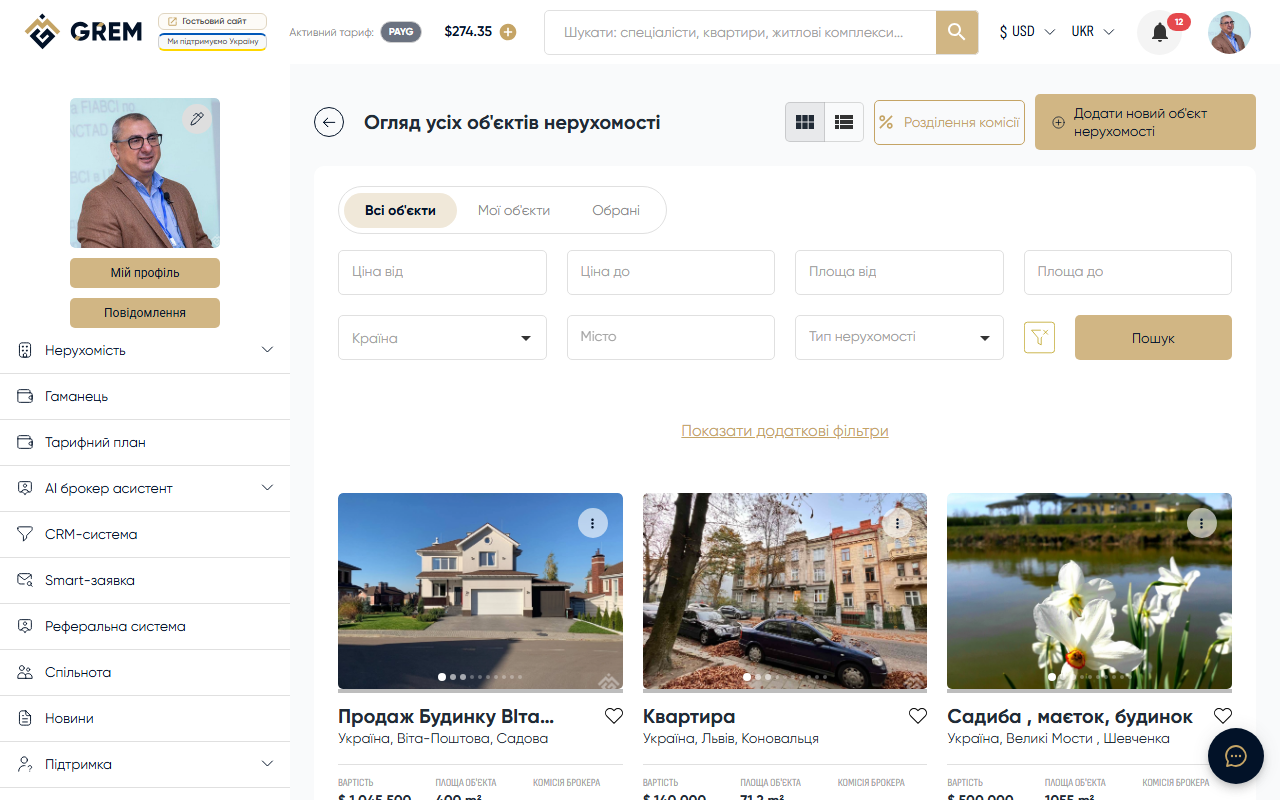
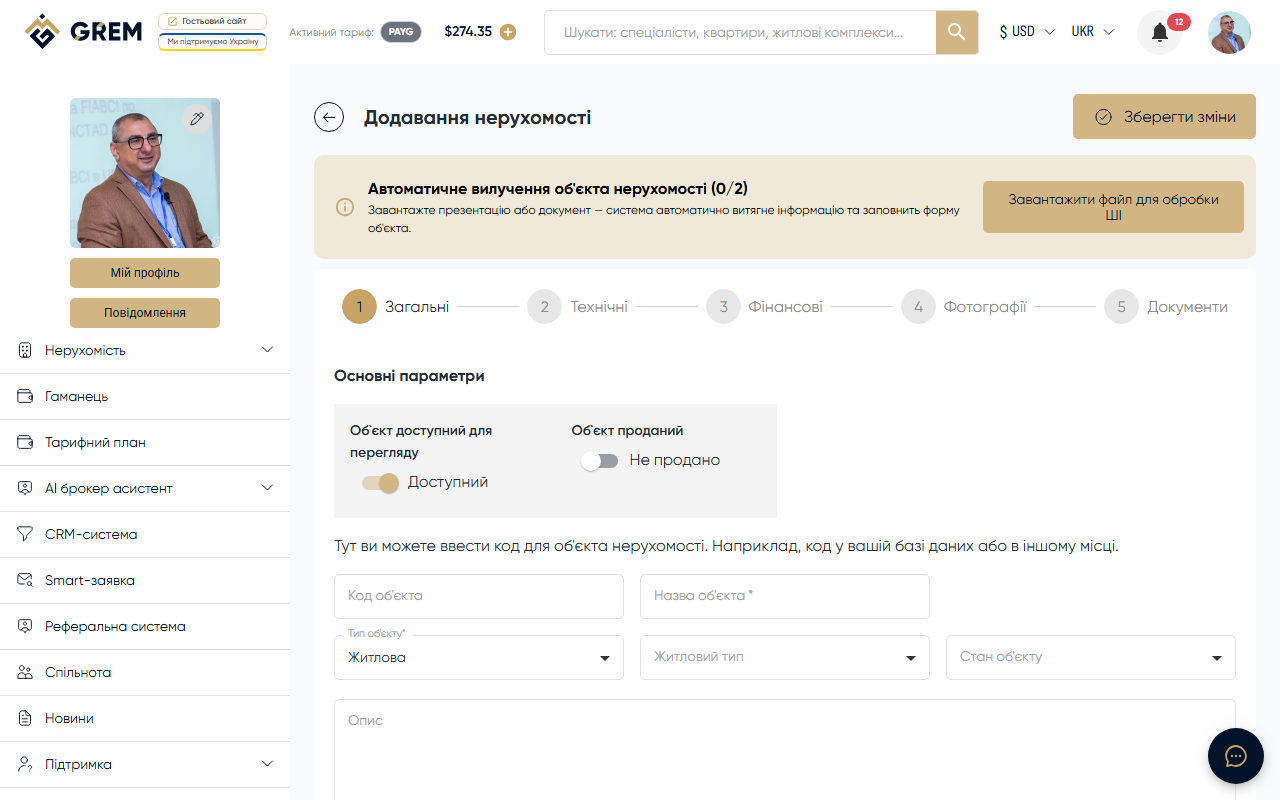
Go to the "Real Estate" section in the dashboard. Click the "Create" button at the top of the page. A multi-step property creation form will open.
Step 1: General Information
Fill in the basic fields:
- Title — a short name for the property that users will see
- Property type — select one of the main types
- Subtype — a more specific type based on the selected main type
Available types and subtypes:
| Type | Subtypes |
|---|---|
| Residential | Flat, Apartments, House, Condo, Townhouse, Villa |
| Commercial | Office, Retail space, Hotel, and more |
| Industrial | Warehouse, Factory, production facilities |
| Land plot | Land plots of various designations |
Step 2: Location
Specify the property location:
- Country — select from the list
- City — select or enter the name
- Address — full property address
- Geolocation — point on the map (can be set manually or by dragging the marker)
Accurate geolocation helps buyers find the property on the map and evaluate the surrounding infrastructure.
Step 3: Technical Specifications
Fill in the building and unit details:
- Total area and living area (sq.m)
- Number of rooms, floor, total floors in the building
- Year built, construction type
- Renovation condition, wall materials
- Additional amenities (parking, balcony, elevator, etc.)
Step 4: Financial Information
Specify the price and financial terms:
- Price — numeric value
- Currency — one of four: UAH, USD, EUR, AZN
- Deal type — sale or rental
- Additional terms as needed
Step 5: Photos
Upload photos of the property. We recommend adding at least 5 photos: facade, rooms, kitchen, bathroom, and window view. Supported formats: JPG, JPEG, PNG, WEBP.
Use AI photo enhancement to automatically process your images: remove noise, improve lighting, or apply virtual staging.
Step 6: Documents
Add documents confirming ownership or other legal documents. This step is optional but increases trust in your listing.
Draft and Publishing
After completing the form, the property is saved as a draft. In this status, it's visible only to you.
To publish a property, you need to:
- Fill in all required form fields
- Upload at least one photo
- Sign a commission split contract
Commission Split Contract
This is a mandatory agreement between the agent (broker) and the GREM Capital platform that defines the terms for splitting the commission on a successful property deal.
What the Contract Includes
- Sale price — starting price of the property
- Platform commission percentage — 25% of the agent's commission by default
- Party compensation — fixed amount or percentage of the deal for the agent
- Property details: area, development status, name, address
- Agent details: full name, passport data or company details (registration number, address)
- Payment terms: number of days for payment, penalty terms
- Additional terms: free text
Contract Statuses
| Status | Description |
|---|---|
| Pending signature | Contract created, awaiting signature |
| Signed by platform | Signed by GREM |
| Signed by agent | Signed by the agent |
| Approved | Contract approved, property can be published |
| Rejected | Contract rejected by administrator |
| Completed | Contract completed (deal closed) |
| Archived | Contract archived |
Contract Documents
The following can be attached to a contract:
- Contract template: PDF without signatures
- Agent signature: PDF with agent's signature
- GREM signature: PDF with both signatures
- Owner documents: proof of ownership
- Agency documents: agency agreement
- Passport scan: agent's identity document
Without an approved commission split contract, publishing a property is not possible. Create the contract on the property page and wait for it to be approved.
After all conditions are met, click "Publish." The property goes through administrator moderation and, once approved, becomes available in the platform catalog and search.
What's Next
- Use the AI content generator to automatically create a professional description for your property
- Explore the platform navigation to discover other useful tools