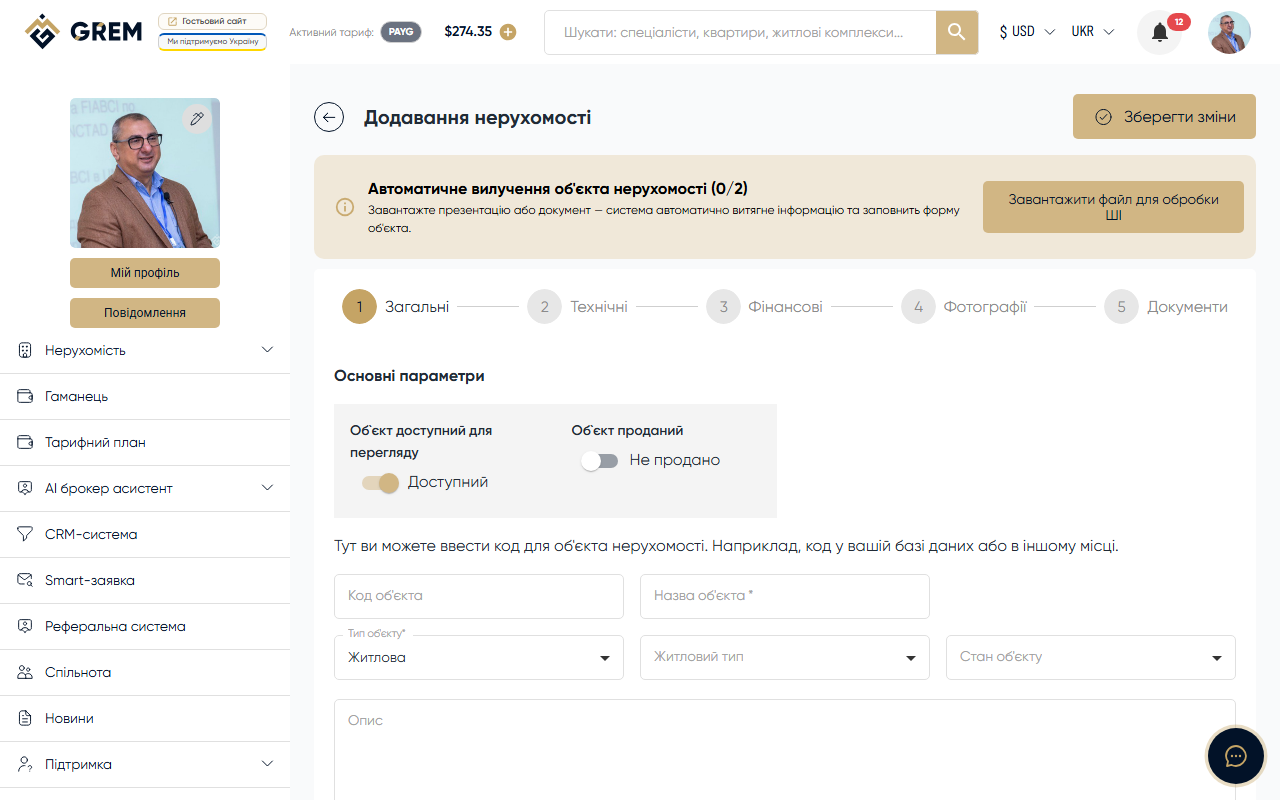
Who Can Create Properties
Property creation is available to users with one of the following roles:
- Broker — real estate agent
- Seller — property owner
- Development company
Before publishing a property, you must sign a commission split contract. Without a contract, you can save the property as a draft but cannot submit it for moderation.
Multi-Step Form
Property creation consists of 5 steps. Each step is validated separately. You can save intermediate progress as a draft and return to editing later.
Step 1: General Information
| Field | Required | Constraints |
|---|---|---|
| Property title | Yes | Maximum 120 characters |
| Property type | Yes | Residential, Commercial, Industrial, Land plot |
| Subtype | Depends on type | List of subtypes based on the selected type |
| Country | Yes | Select from available countries |
| City | Yes | City name |
| Street | No | Property address |
| District | No | District or neighborhood |
| Geolocation | No | Map coordinates (latitude, longitude) |
After selecting a type, the system displays available subtypes. For example, for Residential: Flat, Apartments, House, Condos, Townhouse, Villa. See the full list in the Property Types article.
Geolocation allows you to precisely position the property on the map. You can enter coordinates manually or select a point on the interactive map.
Step 2: Technical Specifications
The available fields depend on the selected property type. Main fields:
| Field | Description |
|---|---|
| Building type | Panel, brick, monolithic, etc. |
| Wall material | Brick, concrete, wood, etc. |
| Floor / Total floors | Property floor and total number of floors |
| Ceiling height | In meters |
| Total area | Total area in sq.m |
| Living area | Living area in sq.m |
| Kitchen area | Kitchen area in sq.m |
| Number of rooms | Room count |
| Bathrooms | Count and type (separate/combined) |
| Balcony/loggia | Availability and count |
| Parking | Parking type |
| Heating | Heating system type |
| Utilities | Available utilities |
Step 3: Financial Information
| Field | Required | Description |
|---|---|---|
| Price | For publishing | Property price in the selected currency |
| Currency | Yes (if price specified) | UAH, USD, EUR, or AZN |
| Monthly rent | No | For rental properties |
| Annual income | No | Expected annual income |
| Yield | No | Yield percentage |
| Payback period | No | Estimated investment payback period |
Prices are stored in minor currency units (kopecks, cents). Currency conversion is performed automatically using the current exchange rate, which is updated every hour.
Step 4: Photos and Video
- Upload one or more property photos
- Select the main photo that will be displayed in the catalog and property card
- The system automatically generates multiple size variants
- Add video links (up to 5 URLs)
More about media: Photos and Documents.
Step 5: Documents
Upload supporting documents:
- Floor plans — floor layouts, site plans
- Owner documents — title deeds
- Agency documents — agreements, certificates, permits
Saving and Publishing
After completing the form, you can:
- Save as draft — the property is saved with "draft" status and is not visible to other users
- Submit for moderation — the property transitions to "moderation" status and awaits administrator review
Fill in as many fields as possible. Properties with detailed descriptions, quality photos, and complete specifications attract more buyers and rank higher in search results.
After moderator approval, the property transitions to "active" status and becomes available in the catalog. More about statuses: Property Statuses.